
困った時は
| 現象 | 方法 |
|---|---|
| Device failed to turn ON | Please try the following in order. ① Unplug and plug from the outlet which will turn the power off and then on again ② Try with another outlet |
| obniz’s Wi-Fi SSID is not getting discovered in the scan list on smartphone or PC | Make sure that the gateway is in the settings mode.With the gateway plugged into the outlet, press and hold the touch button on the side (left) for 3 seconds, the LED will blink purple. Release the button and the device will enter the "setting standby state". At this time, Wi-Fi is output from the gateway. |
| The login page does not open automatically even when connected to the Wi-Fi output by the gateway. | If there is no automatic transition to the login page, please access http://192.168.254.1/ (while connected to the Wi-Fi output by GW).If you still cannot access the login screen, please contact us. |
| Failure in connecting to Wi-Fi (LED keeps blinking green and doesn't proceed) | If there is no Wi-Fi available in the surroundings that can be connected to, it will blink or light up in green repeatedly.Please check the following. |
Please check below also
- Gateway can connect to Wi-Fi in only 2.4 GHz band (cannot connect to 5GHz)
If it does not improve, delete (reset) the gateway network settings and try the settings again from the beginning.
“Failed:No Wi-Fi Found(201)” or ”Failed:(0)” error is displayed | The following reasons are possible.
・ Stealth SSID (14ch only in Japan) → Try changing "country setting"
・ 5GHz band Wi-Fi → Please prepare 2.4Ghz band Wi-Fi
Resetting the Wi-Fi credentials on the device | Please refer the following.
ゲートウェイのWi-Fi設定をリセットしたい
Checking the access point and network environment
When the gateway cannot connect to Wi-Fi, or when the connection is unstable, there are things you can review not only on the gateway but also on the access point (Wi-Fi router) and the network environment. Please check the following in order.
Frequency band and channel
- The gateway can connect only to the 2.4 GHz band (IEEE 802.11b/g/n). It cannot connect to the 5 GHz band.
- If you use a setting that broadcasts both 2.4 GHz and 5 GHz under a single SSID (band steering), please prepare a separate SSID dedicated to 2.4 GHz. The gateway may be steered to the 5 GHz side and fail to connect.
- The channel bandwidth is 20 MHz. Specifying 40 MHz or wider has no effect.
Signal strength and interference
- Please move the gateway closer to the access point. A radius of about 15 m is a rough guide. Walls, metal, concrete, and water tanks weaken the signal.
- Microwave ovens, Bluetooth devices, and other 2.4 GHz radios cause interference. Please change to a less congested channel.
- If several access points with the same SSID (such as mesh repeaters) are nearby, the connection target may switch frequently and become unstable. Please adjust the placement of the units and repeaters.
Authentication and security settings
- We recommend WPA3 as the authentication method. With a WPA2/WPA3 mixed mode, the access point may take time to establish a connection.
- Networks that require a web login (captive portal) are not supported. You may not be able to connect on Wi-Fi at hotels, public facilities, or guest networks.
- If MAC address filtering is enabled, please register the gateway's MAC address in the allow list.
- Settings that block device-to-device communication (privacy separator, AP isolation) may interfere with connecting to the gateway from a browser during initial setup. Please disable them temporarily while configuring.
Path to the internet
- The gateway communicates outbound toward the obniz cloud (HTTPS / TLS 1.2). Because communication is initiated only from the device side, port opening and port forwarding are not required.
- If your firewall restricts outbound communication, please allow communication to the destination domains
obniz.ioand*.obniz.io. The destination IP address is not fixed. - In an environment that goes through a proxy, please set the proxy information (HTTP or HTTPS) during initial setup.
- If you specify a DNS server, only one entry can be registered. Without name resolution, the gateway cannot connect to the cloud.
For details, please see the FAQ (About the network).
IP address assignment (DHCP)
- If the number of connected devices has reached the limit, or the addresses that DHCP can hand out are exhausted, the gateway cannot obtain an IP address and cannot connect. Please widen the DHCP address range, or disconnect devices you are not using.
- If you want a fixed address, you can set a static IP during initial setup.
If it is still unstable
- Please restart the access point. A temporary problem may be resolved.
- Please update the access point's firmware to the latest version.
- If a power-saving mode (such as an eco setting) is enabled, please disable it and try again. It can cause the connection to drop intermittently.
LED Status
LED Status List
The status of the network connection can be checked by the lighting of the LED status lamps on the main unit.
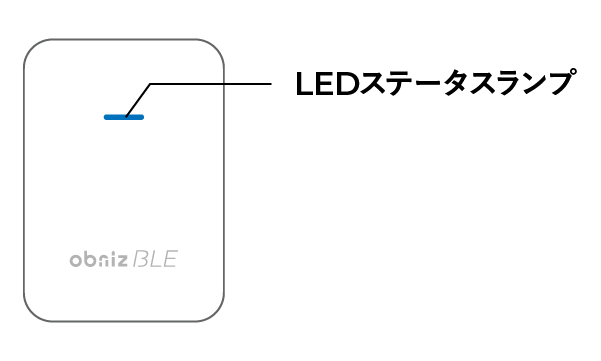
| LED state/color | Status | Things to do and possible solutions |
|---|---|---|
Steady Green |
State immediately after startup | |
Blinking Green |
Wi-Fi scan/ connection state | The available Wi-Fi is being scanned (or connected). It will automatically change to one of the following statuses. ・ Purple (blinking): Wi-Fi setting standby state ・Blue (blinking): Successful connection to Wi-Fi. Connecting to the cloud. ・Red (steady): Error when connecting to the cloud (Please check the items that are mentioned for the steady read state) If there is no Wi-Fi that can be connected to, the LED status will be blinking / steady green. Please check the availability of Wi-Fi and the specifications of Wi-Fi. |
Steady Blue |
Connection complete | Device successfully connected to the obniz cloud (setting completed) |
Blinking Blue |
Connecting to the cloud | The connection to the Wi-Fi is successful and the device is connected to the cloud (Internet). |
Blinking Purple |
Waiting for user settings |
The gateway is outputting Wi-Fi and waiting for user operation. By connecting to the Wi-Fi provided by the gateway from a terminal such as a PC or smartphone, the Wi-Fi credentials can be set or reset. |
Blinking Purple(Fast Flashing) |
WPS mode |
In the normal flashing purple state, long press the touch button (for more than 3 secs) to enter WPS mode (the gateway is waiting for the access point's WPS). Press the WPS button on the access point such as a Wi-Fi router to complete the setting. |
Steady Red |
Connection to Wi-Fi completed, cannot connect to cloud |
It is in a state where some kind of error has occurred. Please try the following in order. ・ Turn the power off and then on again ・Reset the network settings and re-enter the network credentials ・ Reconfigure the settings after a while |
Blinking Blue(Fast Flashing) |
Update obnizOS | If obnizOS update is in progress, it will restart and return to green (blinking) after completion. |
LED OFF |
Device not turned ON | Check the power supply outlet.Unplug the device and connect a different device to the same outlet to check the outlet. |
Wi-Fi reconfiguration
If you don’t have any Wi-Fi information or can’t connect to Wi-Fi, you’ll need to set it up again. You will need to reconfigure your Wi-Fi, especially in the following cases:
- My Wi-Fi password has changed.
- I want to register an additional Wi-Fi connection that is not currently connected.
If you want to set up your new Wi-Fi information, here’s how you can do it
- Re-configure in a place without connected Wi-Fi
- button to clear all Wi-Fi settings from device setting mode.
How to check OS version
The OS version is normally displayed on the unit's display.
If you press and hold the button for a few seconds, you will be able to check the information and set the device (purple (flashing)). Again, you can connect with a smartphone or other device to clear the Wi-Fi settings, etc.